

Teams
Teams group agents and members inside an organization. A user's team membership determines which agents they can see, which sessions they can act on, and which dashboard metrics are scoped down to them.
What a team contains
| Field | Notes |
|---|---|
| Name | Required. Shown in lists, headers, and the Team Assignments section of the Edit Member modal. |
| Description | Optional. Free text. |
| Icon | Required. Picked from the standard agent icon set. Shown next to the name everywhere. |
| Members | Users assigned to the team. Determines what those users can see. |
| Agents | Agents assigned to the team. An agent may belong to more than one team. |
A team itself has no policies, guardrails, or behavior rules — those are always per-agent. A team is a visibility and access concept, not a governance container.
Teams list
Click Organization in the sidebar. The page opens on the Teams tab by default.
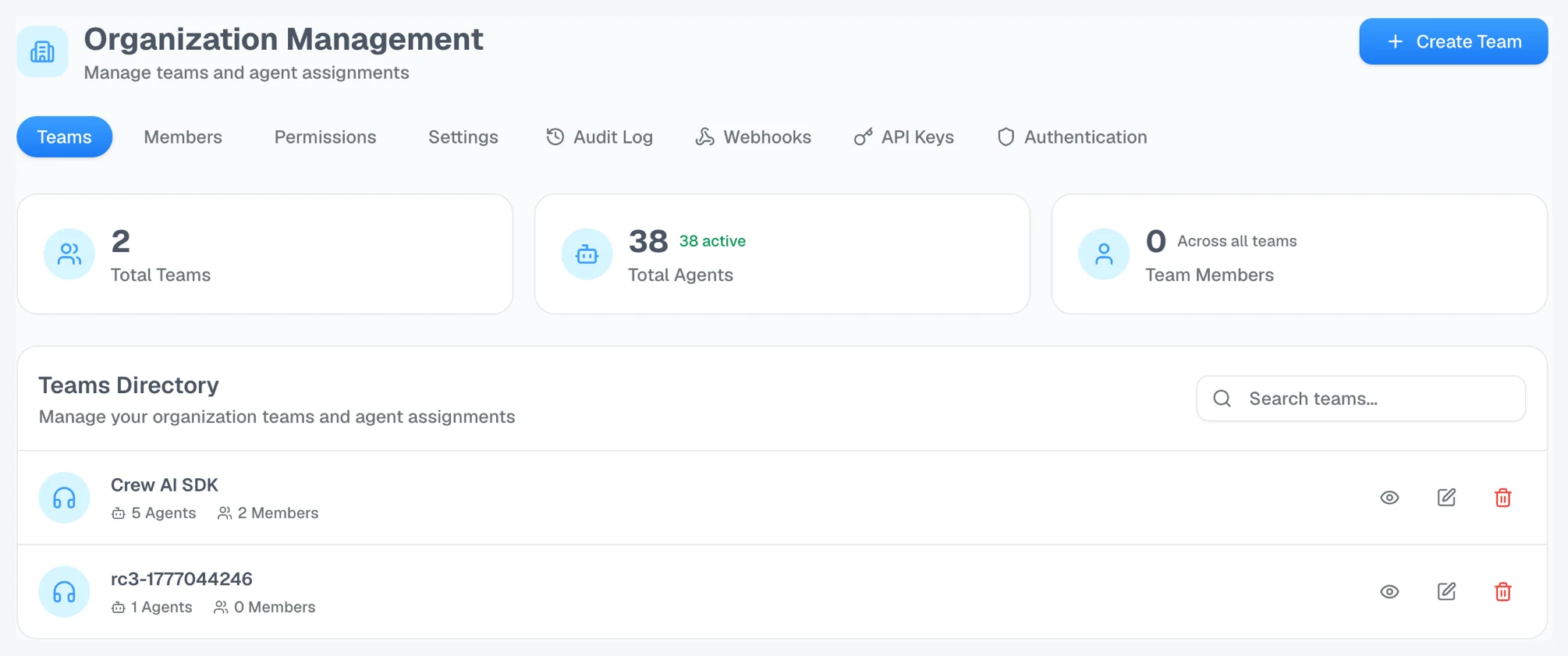
The list shows one row per team. Each row displays the team's icon and name, an Active badge if the team is active, the description, and inline counts of how many agents and members the team has. Per-row actions: View, Edit, Delete.
A Search box at the top filters teams by name or description. Use the Create Team button (top right of the Organization page) to add a new team.
Team detail page
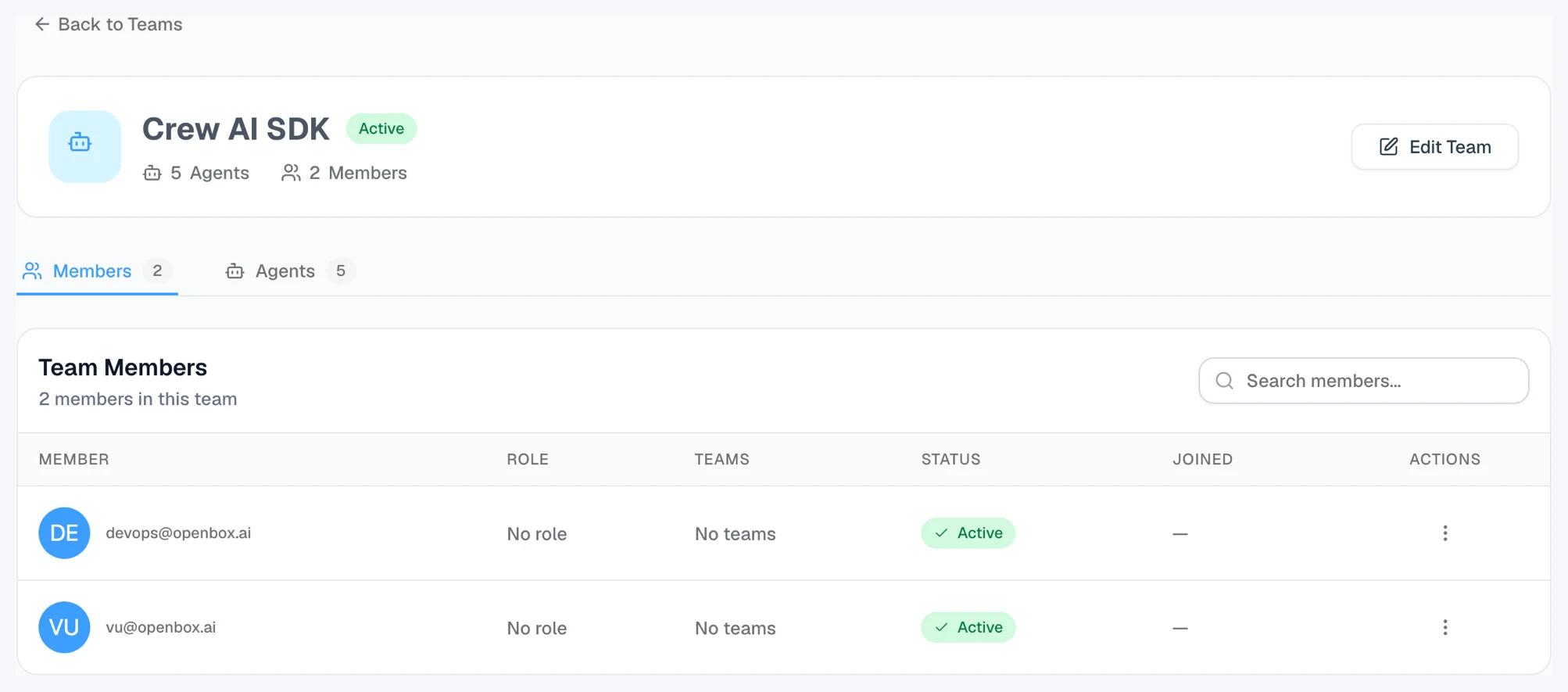
Click the eye icon on a team row to open its detail page. The header shows the team's icon, name, an Active badge if the team is active, description, agent count, member count, and created date. An Edit Team button sits to the right of the header. Below the header are two tabs.
Members tab
Lists every user assigned to the team. A search box filters by name or email.
Per-member actions sit behind the ⋯ menu in the Actions column: Edit (opens the same modal as Organization → Members → Edit, where team assignments are managed) and Delete.
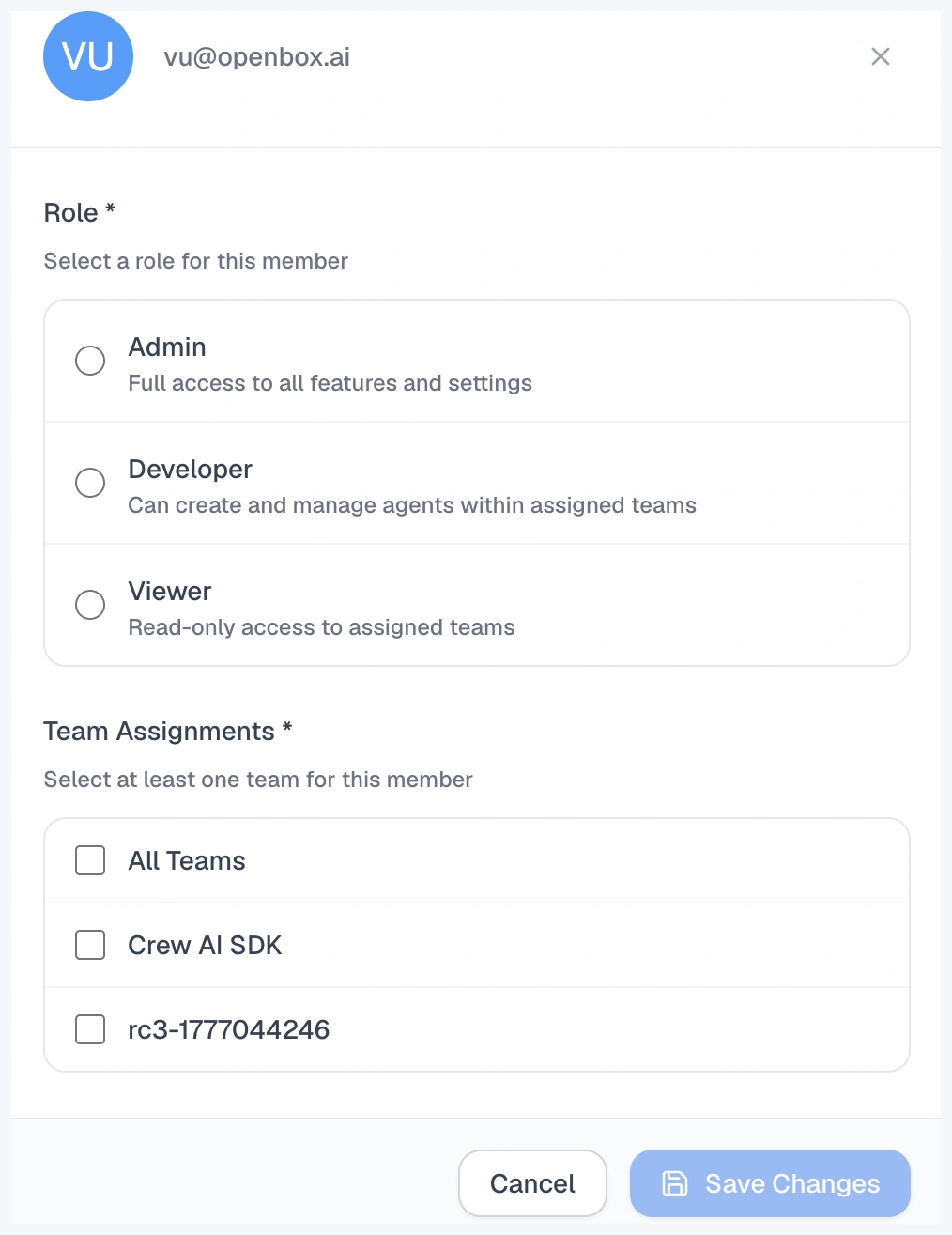
The Delete button on a team member removes the user from the entire organization, not just from this team. To remove a user only from this team, use Edit and uncheck this team in the member's team list.
To add a user to a team, go to Organization → Members, then either invite a new member or edit an existing one and assign the team there. There is no "add member" button on the team detail page itself.
When the role on the Edit Member modal is set to Admin, the Team Assignments section is hidden — administrators have access to every team without needing per-team assignment.
Agents tab
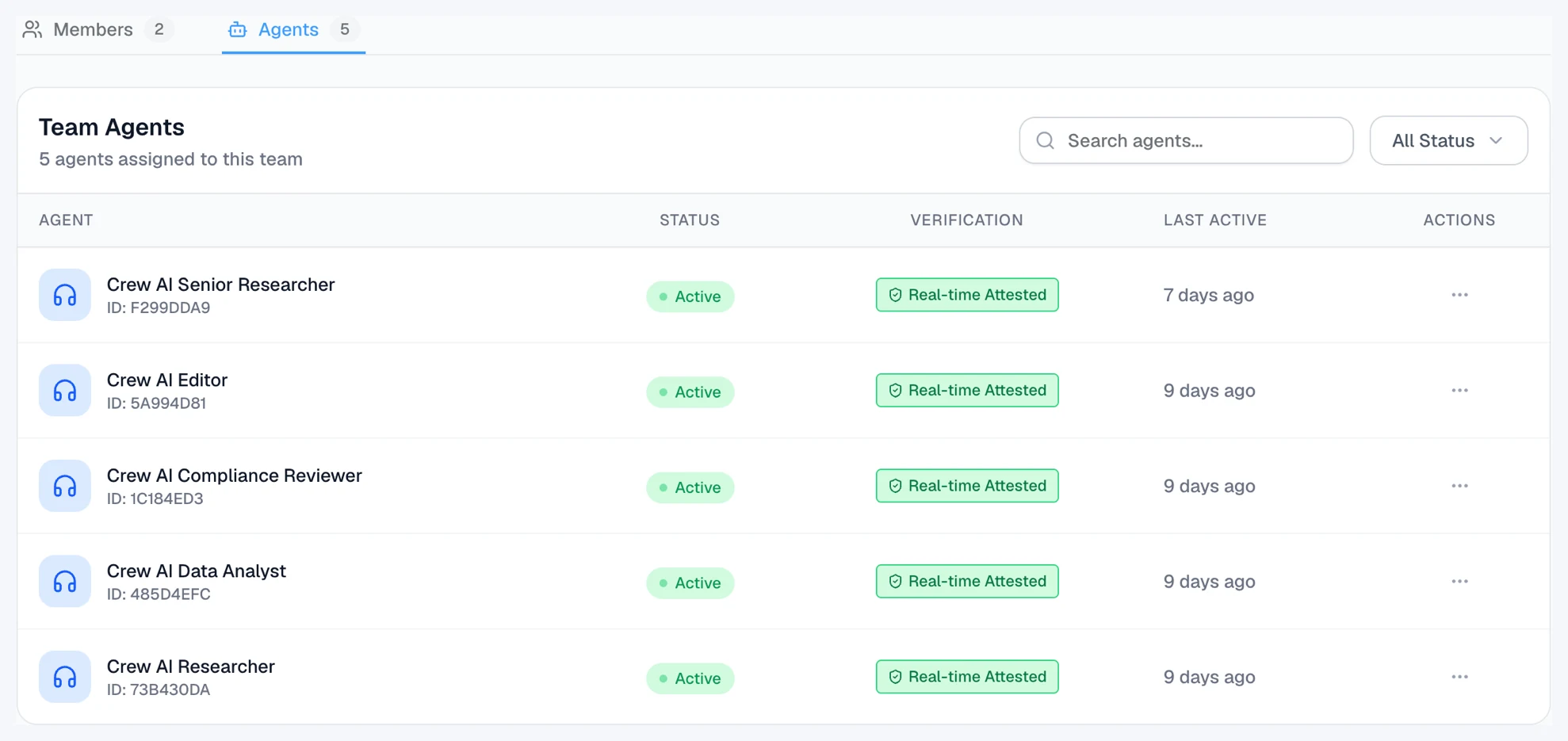
Lists every agent assigned to the team and renders Multi-Agent Sessions beneath the list. The agent list is the same data as the global Agents page, filtered to this team.
Creating a team
- Click Organization in the sidebar (the page opens on the Teams tab)
- Click Create Team
- Fill in Name, optional Description, and pick an Icon
- Save
The team is created empty. Assign members to it from Organization → Members (invite a new member or edit an existing one and add the team). Assign agents to it from each agent's General Settings.
Editing a team
From the team detail page, click Edit Team (top right). The edit form exposes the same fields as create: name, description, icon. Member and agent assignments are managed elsewhere — see the Members tab and each agent's General Settings.
Deleting a team
Click the trash icon on a row in the Teams list and confirm. Deleting a team unassigns its members and removes its agent assignments. The agents themselves are not deleted — they just lose that team assignment.
What is and isn't team-scoped
A common point of confusion. Teams scope visibility and access, not governance.
Team-scoped:
- Which agents a non-administrator user can see
- Which sessions and governance events appear in their dashboards
- Which runs show up in Multi-Agent Sessions
- Dashboard tiles (Governance Feed, Trust Ledger, Policy Activity, Violation Heatcal, and others) when viewed by a non-administrator
Not team-scoped:
- Policies, guardrails, and behavior rules — always per-agent
- Approval routing — per-agent, not per-team
- Roles — organization-wide (Admin, Developer, Viewer); team membership is a separate assignment layered on top
- The agent itself — the agent runs and is governed independently of team membership
Administrators see every team and every agent regardless of team membership.
Permissions
| Permission | Granted to |
|---|---|
create:team | Admin |
read:team | Admin, Developer |
update:team | Admin |
delete:team | Admin |
Viewer has no team permissions. The Teams page will appear empty for a Viewer and team-scoped actions will be unavailable.
A Developer who is assigned to specific teams can only see and act on agents within those teams. A Developer who is not assigned to any team sees no agents.
Related
- Multi-Agent Sessions — visualize a single multi-agent run for this team
- Organization — organization-level settings, members, and roles
- Agents — global agent list